Charlotte's Web ThingLink

Wednesday, May 13, 2020

At-Home Teaching

Argumentative Writing: At-Home Style ✍️


The 7th Grade ELA team at DMS had just launched their Argumentative Writing unit prior to the March 13 when they found themselves, as all of you, amongst sudden school closures. Here is what Shelley Crocker and Beth Fabiano describe as they moved the process online: 

“After kicking off the genre with a classroom debate, our students couldn’t wait to get started. Not willing to squander student enthusiasm, the existing unit was reworked to be continued at home, showcasing an assignment inspired by Penny Kittle and Kelly Gallagher called, “What Would it Take to Make You Care?” 7th graders were encouraged to pick a topic they were personally concerned about and create presentations to convince their peers to share their view. Topics ranged from global warming to equity and relied on ethos, pathos, and logos to persuade. To mimic the inherent competition in debate, volunteers put their arguments up for an anonymous competition where 7th graders voted on the most convincing argument. All from home, cases were made, minds were opened, and views were changed - argument success.”


Here is an example of what transpired: Example


Thoughtfulness


Anna Livermore at Lietz Elementary has continued her focus on students spreading positivity. In Flipgrid, she created an assignment for students to surprise their principal. By combining a fun tech tool with a thread of compassion, Anna has kept the Lietz Lion community connected.


Story Time


Friday nights, Carlton teacher Kate LaBarbera connects with her students by sharing a night-time story. Using Loom, Kate records herself reading a story which students can then access before their bedtime. To create the perfect ambiance, light music is played in the background. To change it up, sometimes the video is her voice and the book, and sometimes Kate appears in the lower left-hand corner. These stories send students blissfully into their weekends.

Goodnight You! - Watch Video


A Daily Challenge through Morning Messages


Each morning, Theresa Hull’s 1st graders receive an optional challenge to complete through a short, pre-recorded morning message. The challenges ask students to submit a response through SeeSaw, and allow students choice in how they will complete the task. For instance, in one challenge, the students were asked to do something nice for their families, and in another, share a movie they recently saw. Students were given ideas to write, draw, take a picture or come up with their own idea to tell their teacher what they did for the challenge. As she explains in the video, this exercise allows her to connect with her students while expanding upon their writing and creativity. Teacher tip: Theresa shared how she records all of the videos in one day and posts them on seperate days.

Morning Message


Flat Donlon


Following a teacher blog, Katherine Donlon learned about the idea of Flat Donlon and recreated it for her own 1st grade class. First, she printed her bitmoji and then laminated them. Next, she mailed the bitmojis to her students, accompanied by a poem asking students to take her on adventures. After listening to the Flat Stanley book that inspired the Flat Donlons, students were instructed to take Flat Donlon on three adventures and then write about them. She asked students to focus on adding details to their writing. One of Katherine’s favorites was a Flat Donlon who found the coffee in the house as her students know she loves coffee.


Hyperdocs


The 4th-grade team at Alta Vista created social studies hyperdocs for their students. These hyperdocs allow students to travel at their own pace as they explore topics, apply their knowledge and even go on remote tours. Using this model, the teachers are aiming to increase student engagement. Check out the examples below:

California Statehood
Pony Express Hyperdoc
Transcontinental Railroad

Wednesday, April 22, 2020

Celebrating Your Creativity and Ideas 🎉

It is always so inspiring to catch a glimpse of what you, our amazing USD teachers, are doing to make online learning a truly memorable experience for our students each week. There are so many inspirational and wonderful things happening each and every day, just a few which are shared below.

Please use these ideas to inspire your own creativity.
Outside of the box thinking always welcome!


At Home Learning Buddies


Jessica Friedman and Taylor Isaacs have introduced the idea of learning buddies with their 4th graders through weekly art challenges. In the first week, students were challenged to create a learning buddy using materials found at home: an old sock, an egg carton, yarn… The learning buddy not only provides encouragement during at-home learning time, it is a friend students can read to, and is an additional class member that joins students during Zoom meetings. Most importantly, the learning buddy reminds students that they are creative and original too!

This is a quick glimpse into the learning buddy challenge:
Weekly Art Challenge #1 - Create a Learning Buddy


Choose Your Own Adventure


The 7th grade team at UMS began a four-week “Choose Your Own Adventure” project that was built from ideas posted on Twitter by Pernille Ripp. Students begin by choosing the path they want to pursue: Independent Reading, an Inquiry Project or Creative Writing. Students then complete their adventure in a customized Google Classroom which joins students together who have chosen the same adventure. Each teacher manages one of the adventure paths and hosts live check-in sessions once per week with the students while holding office hours and posting lessons or tasks on other days. This experience has truly highlighted what creativity online learning can provide for students. It is also a testament to collaboration and thinking outside the (classroom) box.


Connecting with our Preschoolers


Pre-K teacher Laura Better-Henry has been utilizing SeeSaw to connect with her students and as a way to meet a variety of her students' diverse learning needs. Every day, Ms. Better-Henry sings the "Day Of The Week" song. She also conducts a calendar review, reads her students story books, gives art lessons and even leads her students through yoga exercises! With these student connections and interactions, Ms. Better-Henry's students continue to learn and practice their language, motor, and learning skills during at-home learning. To help us stay inspired, here is Ms. Better Henry (I can’t help but sing along every time)!

Ms. Better-Henry: Days of the Week song


A Collection of Stories


Members of the Lietz staff have come together to record readings of a variety of storybooks. Teachers then post these readings through SeeSaw or Google Classroom as part of their ELA assignments. Here is just one example of Mrs. Gustafson reading The Adventures of Beekle, An Unimaginary Friend

Mrs. Gustafson Reading: The Adventures of Beekle


Checking in on Student Wellbeing


Sixth grade teacher Ginny Espinoza checks in with her students using a Google Forms before classes begin each day. Ginny began this process before at-home learning and continues to use it to gauge where her students are emotionally before diving into a lesson. Inspired by work with Ken Shelton, Ginny asks three simple questions each day: Student Name, "How Are You Feeling?" and, "Is there anything I can do or you need from me to support your needs, your wellbeing, or just you in general?" Using the information she receives, she checks in with students who need extra support for that day, though sometimes they just enjoying sharing fun facts, like what they ate for breakfast. Ginny noted that, “It has been really beneficial in building strong relationships with my students. I've noticed that they seem more inclined to share with me, and it has been a great way to quickly see how they are doing.”

Wednesday, April 1, 2020

Sending a message to one student in Google Classroom

CLICK HERE for the short (just over a minute) video on how to do this.


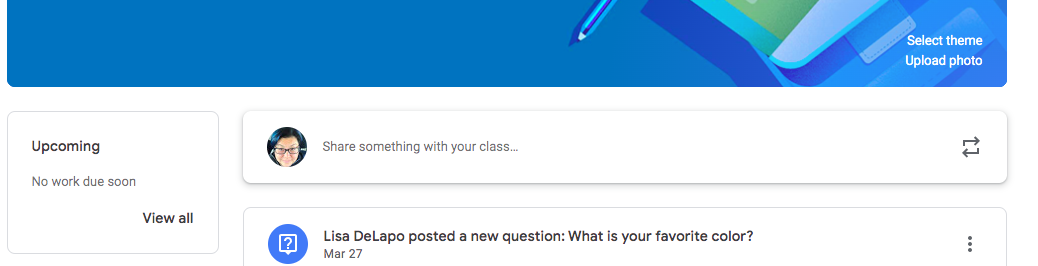
Step 1: In the Classroom, choose STREAM at the top of the screen.

Step 2: Click on Share something with your class…


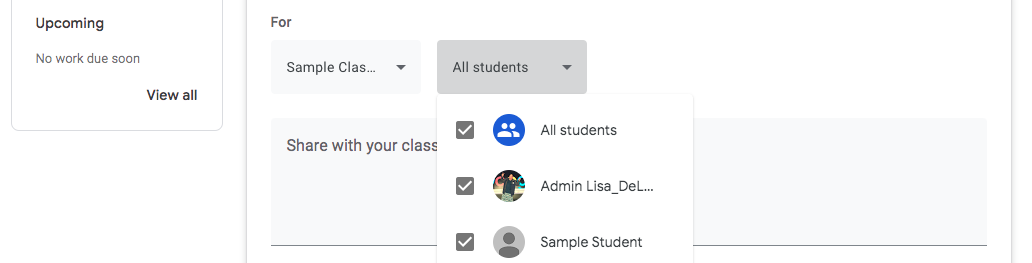
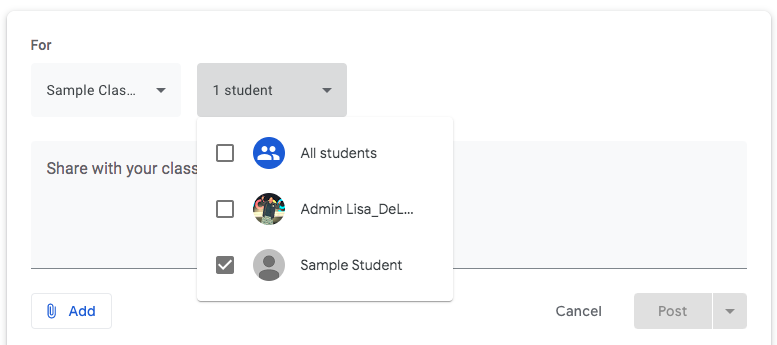
Step 3: Deselect the ALL STUDENTS box


Step 4: Scroll through the list to select the student to whom
you want to send a message.


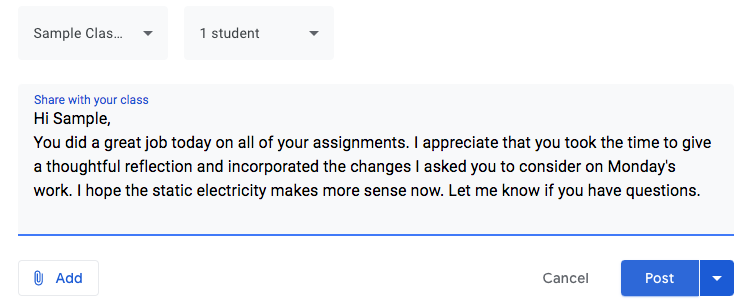
Step 5: Write your message. 


Step 6: Click Post (or click on the drop arrow to choose
Schedule and have it automatically post it for that student at a future time)
You’re done!

Friday, March 27, 2020

Zoom Settings - Revisited

With all the recent press on Zoombombing and privacy concerns, we've updated our how-to with added security settings, including enabling the waiting room and other helpful tips.

Bottom line - don't share your meeting link publicly (not on social media, not on your teacher webpage, not online except in Google Classroom or SeeSaw).

Big shout out to ToSA Chanmi Chun for incorporating the new privacy information.

Direct Slide Link

Wednesday, March 25, 2020

Guidelines for Conducting Live Video Conferences with Students


UPDATED 3-27-20

During this time of school closures, it is critical that we maintain connection and engage with our students to address the negative effects of social isolation and disconnecting from school. Many teachers have expressed interest in holding live video conferences with their students to re-connect and re-engage in learning, but conducting whole class live video instruction is not expected or required at this time. Video conferencing is a great way to engage in small group or individual support for students on an as needed basis. Before conducting any video conferences with students please think about these considerations.

Equity and Access

Consider providing multiple ways students can access any content shared in a video conference to ensure equitable access for ALL students. Not all students may be available at a specified time to meet and not all students may have internet access at home capable of supporting live participation.
Consider ways to deliver content asynchronously so students can access it when and how they are able. Screencasts, video recordings, articles, YouTube videos and other existing content can provide alternatives to live online instruction that can be accessed in a flexible manner.

Currently Supported Video Conference Tools

The following tools are currently being supported by the USD Tech Department and meet student data and privacy requirements:
  • Google Meet
  • Zoom
Some Important Considerations Before Using Live Video Conferencing With Students:
  • Protect your student’s privacy! Refrain from posting images of any video conferencing sessions on social media that may display student faces and/or student names. Our existing Media Opt-Out policy applies.
  • Be aware that students may record sessions without your knowledge or permission; discuss this with them beforehand as part of establishing expectations for online class conduct and behavior.
  • Parents may be watching alongside, or with their student during the live conference and may wish to participate; again, discuss this with them beforehand as part of establishing expectations for online class conduct and behavior.
  • Be aware of the possibility of inappropriate student behavior and student safety issues:
    • Inappropriate images or words may be visible in backgrounds.
    • You may hear things (dogs, cats, siblings, etc.) in the background.
    • As a mandated reporter, you might see something that you feel legally obligated to act upon.
    • The video background environment may disclose information such as location or student full name.
NEW - Recording

Live video class sessions may be recorded by the teacher with prior notification to parents. Teacher recordings will be used for legitimate educational purposes, including making the session available to the class in a secure format for viewing after the live session has ended. Parents may opt their student out of participating in a live session recording by notifying the teacher prior to the meeting. Recordings may not be downloaded or shared by parents or students without prior written consent of the teacher and all meeting participants present (including parent permission for any students present).

The Tech Team is here to support you! Please reach out to your site tech or the Technology department as you make this challenging shift to online teaching and learning. This will take time to adapt and that’s expected. Connect with your colleagues and brainstorm ideas together. It’s ok to start with what you know and move forward from there.


How-to Share a Link to Meet/Zoom in Google Classroom


Step 1: When you have created a video meeting in Meet or Zoom, you’ll need to copy the link to share out. Remember, if you’re using Zoom, you need to go to your settings and allow joining via web browser (Instructions here)

Step 2: Open the Google Classroom where you’re sharing the invitation link.

Step 3: Click on STREAM up on the very top of the page.


Step 4: In the middle of the page, click on “Share something with your class…”


STEP 5: Type the directions or information for the meeting. For example, “Join me at 3:00pm Thursday for story-time.”


Step 6: Then click on the ADD button below what you typed. Choose LINK. Paste the link to your Zoom or Meet in the space provided. Click ADD LINK. On the bottom right, click the POST button.


Congratulations, you did it!

Monday, March 23, 2020

How To Use Your School Phone FROM HOME!

With our At-Home learning initiative and stay-at-home in effect, some of you may feel that there is an obligation to use your personal phones to stay connected with students and parents. While staying connected is more important now than ever before, we understand this is not ideal for multiple reasons.

In order to continue to facilitate communication, we are enabling our phone system’s ability to access classroom/school extensions at home through the 8x8 Virtual Office app. The app can be downloaded onto your mobile phone or laptop and will allow you to make calls that look like you are using your phone at work (Caller ID will show your school number, not your personal cell number).

If you would like to get started, please follow the instructions provided below. First step is to download the app from the app store from your mobile phone and then have to reset your 8x8 password to login.

First Step:
App Store Installation (or search for 8x8 Virtual Office from your mobile phone) choose one:
iPhone/iPad: 
Google Play/Android:
PC/MAC (headset with microphone recommended): 

Second Step:
Reset your 8x8 password via the following link:

https://sso.8x8.com (or from the app login window)


  • Click on ‘Forgot Password?’

  • Fill in your unionsd.org Email address
  • Click ‘Send’

Third Step:
Check your District unionsd.org Email for an email from ‘noreply@8x8.com’ and follow the guide from 8x8 to reset your password. (Check your Spam or All Mail folders if no email is in your Inbox)

Final Step:
Open up the app and log in with your unionsd.org Email and the password you just set.

(Note: You may want to log off the app after-hours to prevent incoming calls after your workday obligations are complete)

Technical Assistance:

Your Site Techs are ready to provide support in getting this setup. If you need assistance feel free to contact them directly or email me at doant@unionsd.org.

Saturday, March 21, 2020

Getting Familiar with Google Classroom

At-home learning poses a lot of challenges. But with Google Classroom, you'll find a great way to stay in touch with your students. Whether it's creating a "Stream" for you and students to keep in touch with each other, or pushing assignments to your students through "Classwork," once you have your class set up, you will find it is a great tool.

This post has lots of embedded links in the blue text. Clicking on them should help you become familiar and comfortable with Google Classroom. However, USD teachers can contact one of the Instructional or STEAM ToSAs for further help.

Get started by creating a Class. Once your class is created, there are two ways to have students join your class

Lucky for us, USD has been a Google for Education District for years and our students have accounts from early primary grades and generally know their username and password. If not, you will have to email it to their families for them to join. Once they are signed into their account, all USD students can access Google Classroom through their school's Symbaloo page. You might like to share this doc with families and students to help them sign into Google Classroom for the first time.

Once your class is set up and students are invited, you may like to "Share something with your class..." in the Stream tab. You might like to invite students to share by posting in the Stream. Both you and they will be able to Google Drive files, links, files or YouTube videos. If you would like to reserve the Stream for communications from you, you can turn off student access by clicking on the gear in
the upper right-hand corner of your class and scroll down to "General." There you can set parameters.

You can also delete a post or mute a student by using the three dots that appear on the right of a post. When muted, a student will still be able to submit work.


Of course, posting and assigning classwork is the primary reason teachers use Google Classroom. Teachers create assignments, a quiz, ask a question, or add material. At USD, second through fifth grades teachers will copy each day of the first two weeks of lessons and add them to your Google Classroom. Heather Koleszar created screencasts which walk you through posting both the Reading and Writing (Step 4) and Math (Step 5) assignments. If you are a co-teacher in a class, you can "re-use a post" from their class, a great way to share the work load with your grade level colleagues.

Once work is assigned, you'll be able to see, comment on and grade your students' work. One way to access it is through the Classwork tab. Another is through the Classroom folder created in Google Drive.

Hopefully, this will get you started. If you have questions, here is a resource that might help. And, of course, your USD ToSAs are here to help.

Wednesday, March 6, 2019

2nd Grade Student Newscast

5th graders traditionally create the school newscast for Alta Vista Elementary, but while they were away at science camp 2nd grade teacher Marika Parnell saw an opportunity to try something new with her class!

She collaborated with her Instructional ToSA, Christy Mills, to develop a plan to have her students create the newscast. The topic was field trips. Marika worked with class to produce a set of guiding questions that they would like to explore. The next step was to practice the interview process. Students were grouped into three interview teams, each with interviewers and a videographer. The teams developed a system that included the use of cue cards and the video recording was done with iOgrapher kits. 


It took a lot of practice for the students to understand all of the nuances of the process, including how to make sure the interviewer & interviewee stayed in frame, how to capture the audio clearly, and how to navigate the interview process by asking follow up questions when appropriate. Constructive feedback was essential for everyone to work and grow together. When they were ready they visited 3rd and 4th grade classrooms to complete the interviews. Marika said watching her 2nd graders interview the older students was a highlight of the project!

After the interviews they filmed the newsroom portion against a green screen backdrop, and Marika took on the role of editor. When she started she had no experience editing videos with iMovie, but she was able to learn through a process of trial and error with a little help from her STEAM ToSA, Mary Fran Lynch! This reflects the mantra of Marika's class: we try new things and if it doesn’t go well at first that’s ok as long as we keep improving and seek help when needed.


The newscast was an incredible success; Marika’s class is being recognized all over campus for their efforts and they are incredibly proud of their final product. Check out the full newscast below!


You can follow Marika on Twitter: @MarikaParnell

If you see something cool at your site that would make a good blog post, or would like to guest author a post, please share your thoughts here!

Thursday, January 17, 2019

Student-Created Scientific Investigations

Recently our 7th grade students at both Dartmouth and Union Middle school designed and carried out their own scientific investigations to learn about chemical reactions. Working collaboratively across both middle schools, our 7th grade science teachers created an authentic, phenomena-based opportunity for students to explore a concept while practicing the skills of writing accurately and to a specific audience. It was the first time this year our 7th graders were asked to develop an entire investigation from scratch.

The Setup: Students were provided a collection of safe substances that they knew little to nothing about and a collection of various lab equipment. They were asked to create a step-by-step process to determine what happened when the various substances were combined, and whether the changes they observed were physical or chemical in nature. After drafting their process in small teams, the groups then peer-reviewed each other’s directions and had the opportunity to make revisions.

Implementation: It was time to put student plans to the test. Students followed their own directions and observed all sorts of interactions. While the expectation was that their written directions were followed to the letter, they were allowed to make changes as they experienced problems with their initial plans - as long as they recorded their revisions. These opportunities to iterate were crucial, because instead of being locked into procedures that were either inefficient or would not work at all, students were able to learn from their oversights and mistakes and make adjustments along the way. A great example of this is a team that decided to use only one cup to mix chemicals. They quickly realized how time-consuming it was to thoroughly wash the cup between trials, so they adjusted their investigation to use multiple cups at the same time. A simple revision, but one that allowed students to experience the impact of the changes they were implementing.


Students created their own data collection and analysis tools, such as tables and graphs, which guided them to think critically about the types of information they needed to collect and how to best organize and analyze the data, instead of simply filling out a data table that was provided by the teacher. The investigation was followed by a Claims Evidence Reasoning formative assessment that asked students to determine which reactions they observed were physical and which were chemical, and to use the data they collected to support their conclusions.

The Outcome: Many of the teams struggled with different parts of this activity, especially when it came to writing specific and accurate directions, but they all came a long way throughout the process and made meaningful, real life connections to the concept of a chemical change. Students shared their experiences with working in teams and reflected on what they could do to improve when they work together again.

The next time our students create a scientific investigation in 7th grade, they will have to follow another team’s directions instead of their own. This will add another layer of accountability to their writing and allow them to see how others interpret their work!

If you see something cool at your site that would make a good blog post, or would like to guest author a post, please share your thoughts here!

Wednesday, January 9, 2019

Smart Restart

On our first day back from winter break, staff throughout Union School District welcomed students with engaging and creative activities designed to get students excited about returning to school. Dubbed the “Smart Restart,” students, teachers and staff members participated in a variety of positive social emotional, hands-on and fun opportunities to create and explore together across all subjects and grade levels. Below are just some of the many wonderful activities that were experienced in Union School District on Monday.

Alta Vista Elementary students and staff were inspired by the book Picasso Loves Shapes, so each grade was provided a different die-cut paper shape in different colors and our students used them as inspiration to create their own works of art. Carlton Avenue students fashioned their own unique arcade games from used cardboard boxes and other random materials and invited everyone to play. Students at Guadalupe Elementary showed their artistic side, but some projects involved a twist: teams of seven had to work together to create a power word poster with a pencil tied to seven pieces of string that each member had to control.

At Dartmouth Middle School students participated in activities to promote social emotional growth through a Project Cornerstone kickoff, film making, water color painting and even competitive puzzle solving. Our Union Middle School students tried to solve Digital Breakout challenges and learned about healthy eating during Kitchen Chemistry activities. Students at Lietz Elementary explored various cultures through food and traditions and created art with words, while Oster Elementary students enjoyed STEAM centers, puzzle design and stop motion filmmaking. Noddin Elementary students completed a variety of engineering, coding and Minecraft challenges and some even made their own harmonicas!


Check out #USDLearns and #SmartStart on Twitter to see some of the other amazing things that happened during our Smart Restart, and thank you to everyone for creating such an amazing experience for our students!

If you see something cool at your site that would make a good blog post, or would like to guest author a post, please share your thoughts here!

Wednesday, December 12, 2018

Hour of Code 2018

This past week close to 4,000 of our students and well over 100 of our teachers participated in Hour of Code! We saw an amazing variety of activities across all eight of our schools and all grade levels, including coding, game design, animation, robotics, sound design and many more. You can check out some of these great experiences on Twitter using #USDLearns and #HourofCode.


Our elementary STEAM ToSAs did a wonderful job of promoting Hour of Code and supporting their teachers in creating engaging and challenging opportunities to allow our students to explore computer science and programming. We also saw many great coding activities in our middle schools. Every student and teacher who participated in Hour of Code will receive an exclusive Hour of Code sticker designed by one of our very own students, Dartmouth 8th grader Ashita Apurva:

Thank you to everyone who participated in Hour of Code during Computer Science Education Week and congratulations to this year's randomly selected Hour of Code winner, Nina Lamour, 5th grade teacher at Carlton Avenue School! Keep up the great work and if you haven't started coding with your class yet, it's never too late to start!

Tuesday, November 6, 2018

School Community

Featuring Guest Blogger Navjot Grewal

Guadalupe’s student body has a great tradition of citizenship and community, and more so than any other time, this is showcased during the Student Council elections in the Fall. Led by Teri Susoev, Kathy Williams, and myself, we mentor students to be involved in their communities, give voices to their quieter peers, and advocate for those in need in our school community.

Every year, 4th and 5th graders have the opportunity to run for an executive office in the Student Council. The presidency is reserved for 5th graders, while the rest is open to both grade levels. Aside from the president, every other office can be occupied by a pair of students and this is where the strength of many of our students lies. Many of the applicants choose to run in pairs, writing their speech together, creating joint posters and usually having a catchy campaign slogan. They work tirelessly together to create a strong, cohesive image. Many of our offices are usually held by pairs of students.

In October, we begin the process of placing an open call for students to run. In the span of two weeks, we have posters up, speeches checked and ready to be delivered, and the election day ballot ready to go. During this time many students who we have misjudged as shy come out of their shells to run for office. Others, who are usually more exuberant and outspoken, are often our most nervous and worried. This is a time of growth for students, and a time for teachers to see students they had as first or second graders display confidence as bigger kids. It brings and bonds our school community closer together every year.

The speeches are where many of the students shine. We see them in a new light, grown up and assured, sharing a piece of themselves that can get lost in a classroom or on the playground. They make a tough case for the voting body on who to choose. While some elections can become popularity contests, once the speeches have been delivered the elections become more competitive with an evened playing field.  Students filter back into their classrooms, submit a digital ballot, and eagerly await the elections results in the five minutes leading up to a Friday afternoon dismissal.


There are tears, heartbreak, and a range of emotions as the results are announced by the principal over the PA system. The candidates are together in the media center while their friends wait for them outside on the playground. Giving the candidates a separate space allows those who have lost time to control their emotions and those who have won time to gather themselves and win with grace. There many hugs, congratulation, a few tears, and a lot of cheering in the media center regardless of victory or loss. This is my favorite part as an educator, to watch kids who have worked hard to recognize the hard work of others, to look beyond winning and losing, and to see how kind children can be to another when they’ve worked towards the same goals. While elections can be contentious, at Guadalupe they are symbolic of how our community works: together.

Follow Nav on Twitter: @WheresGrewaldo

If you see something cool at your site that would make a good blog post, or would like to guest author a post, please share your thoughts here!

Wednesday, October 31, 2018

Pumpkin Design Challenge

Featuring Guest Author Todd Sinclair

This October, the 5th Grade team at Oster Elementary took on a new project inspired by the unofficial - and awesome - NASA Jet Propulsion Laboratory (JPL) annual pumpkin carving contest. Engineers at NASA JPL have carved out an hour of time in October over the last seven years to show off their creativity while participating in this fun team building activity. These engineers take time off from designing and building machines that will explore the farthest reaches of outer space to create pumpkin displays with lasers, lights, robotics, and more.


We brought our idea to our incredible STEAM ToSA, Kaitlin Celestre, who quickly devised a plan to help our students tackle this as a design challenge. We provided the students with sessions to explore a variety of tools, including Little Bits, Snap Circuits, and Microbits, with the goal of inspiring design ideas to include in their pumpkin creations. Student teams were then given time to brainstorm a pumpkin design, sketch out their ideas, and develop a list of the electronic components and other items that they would use to further enhance their designs.


Families pitched in with pumpkins, carving tools, and man power to gut the pumpkins on the first day of the building process. Students worked on their designs during the two days before our annual Harvest Festival on Saturday, October 20th. Day One was full of carving, pumpkin painting, and testing the functionality and placement of the electronic components. Day Two was spent finalizing everything from Day One and troubleshooting any issues that arose. Students were fully engaged from the start, and throughout the design process they demonstrated effective teamwork, collaboration, persistence, creativity, and problem solving. Team after team found ways to resolve unexpected design issues to help bring their visions to life. The final projects were incredible.


Follow Todd on Twitter: @sinclairt7

Link to NASA JPL News Release
Link to video on NASA JPL Contest

If you see something cool at your site that would make a good blog post, or would like to guest author a post, please share your thoughts here!


Friday, October 26, 2018

Computer Science

Jennie Reynolds is thrilled to be teaching the first year-long computer science (CS) class at Union Middle School this year. While she does not have an extensive background in CS (she took Basic C as an undergrad to fulfill a math requirement), she embraced the words of her master teacher - if you are a good teacher you can teach anything. She realized the truth in this when she taught a Minecraft class four years ago. Initially Jennie was terrified that she did not know enough about the program to effectively support the class. Instead, she learned that she often had to get out of the way of her students - they were passionate about their work and the learning was naturally embedded in the process as they brought their ideas to life. 

She attended a training over the summer that was hosted by Code.org, which was geared toward teachers who were just starting to teach CS. The free 6th-10th grade curriculum provided by Code.org, Computer Science Discoveries, has been fantastic. The first two weeks were completely unplugged and students focused on problem solving and culture building to instill patience and perseverance. 

All of her 7th and 8th grade CS students are in it together regardless of skill level, and they are always collaborating to support each other’s projects. They embrace the idea that even a student with more experience in CS can learn from everyone else in the class by working together. When they presented their websites last week, every single student had someone else to thank for making their designs work. 

With the recent release of the new California K-12 Computer Science Standards, Jennie is grateful for the opportunity to pilot this class. It is designed to introduce students to many of the key areas of CS and it will give them enough experience within each to understand what a career in any of these fields might entail. To further support this, Jennie will bring in guest speakers throughout the year, including a panel of women in software engineering from Salesforce and a genetic science graduate student from UC San Francisco. Her students are looking forward to the rest of the year, which includes work on animation and video games, empathy-based design challenges, the use of data in society, and physical computing.


Follow Jennie on Twitter: @ReynoldsMath

If you see something cool at your site that would make a good blog post, or would like to guest author a post, please share your thoughts here!

Thursday, October 11, 2018

Guided Reading

Nikki Grist teaches kindergarten at Alta Vista Elementary. Two summers ago the entire Alta Vista kinder team participated in the first Union School District Guided Reading cohort, which was led by Susan Lavelle (@SusanLavelleUSD). The AV kinder team embraced Guided Reading and they were amazed by the growth all of their reading groups made last school year (some students grew from Fountas and Pinnell level AA to F, for example). This year they are excited to build on that success.

Nikki collaborated with fellow Alta Vista kinder teacher Christine Barbara to develop a schedule that allows them to meet with all five of their leveled student groups on Mondays, Tuesdays, Thursdays and Fridays. Students have two separate rounds of centers on each of these days. They start with their Guided Reading block and then break for snack. This is followed by a second round of centers where students work on other subjects such as math and science.

The opportunity to work with every student in a small group setting daily is crucial to the success they have experienced with Guided Reading. Each student group receives differentiated instruction that is designed to meet their specific learning needs, which can range from reinforcing letter sounds and rhyming to reading comprehension practice.

Christine and Nikki have found that they are able to work with the reading groups while the rest of their students are totally engaged. At the other centers, students complete a variety of activities including Word Work, writing practice, reading leveled readers, and listening to stories on iPads from resources like Raz-Kids and Epic!. Students can also use QR codes to access sites like Storyline Online, which features stories that are read by actors and actresses.

The kinder team follows a number of online resources to help them find activities that they can bring to students during the Guided Reading block. For example, This Reading Mama, A Dab of Glue Will Do, and Hello Literacy are sites that offer Word Work ideas almost daily. They also exchange ideas with many educators on Twitter and Instagram as they continue to build their professional learning networks.

In the images below you can see examples of how they organize their days to make sure they have time to work with each group of students. This represents a one hour block of time and each of the three rotations take about 15 minutes to complete.

Monday and Thursday Schedule

Tuesday and Friday Schedule


Follow Nikki on Twitter: @AVGrasshoppers

If you see something cool at your site that would make a good blog post, or would like to guest author a post, please share your thoughts here!

Wednesday, October 3, 2018

Design Thinking Challenge

Alyssa Micciche is a 4th grade teacher at Noddin Elementary. Two years ago her master teacher, Amy Wyosnick of Covington Elementary in Los Altos, suggested a twist on a familiar book, Island of the Blue Dolphins. She was excited to share her success with a unit that embraced Design Thinking. Her students were more engaged with the activities and made long-lasting connections throughout the year.

Alyssa loved the idea and ran with it last year. Students were excited for the design challenge that was waiting for them at the end of the unit. The support of Noddin’s STEAM ToSA, Heather Koleszar, made planning for it easy. After highlighting the importance of empathy Alyssa immediately saw connections between her students and the text, and specifically the main character, Karana. They identified what Karana needed while she was on the island and began to develop ways to meet those needs. When it was time to prototype their ideas Alyssa brought her students to the Makerspace to take full advantage of all of the available resources.

Throughout the process students embraced the growth mindset and worked together to learn from their mistakes. To conclude the unit students wrote reflections, and Alyssa was amazed at how well they were able to reflect on their experiences and make connections to their own learning. Alyssa observed that her students continued to make these connections throughout the school year, especially when embracing failure and working to overcome challenges.

Over the summer Alyssa was collaborating with other teachers during the USD EduProtocols and Notice and Note workshops. As they looked over the Island of the Blue Dolphins unit one of her fellow 4th grade teachers, Mikayla Schott from Alta Vista Elementary, suggested that they take the Design Thinking unit and turn it into a HyperDoc. As they worked together to refine the unit, the 4th grade ELA Bridge Map demonstrated how to seamlessly integrate the EduProtocols and Notice and Note strategies into the learning process.


Alyssa has seen the same excitement in her students this year. They are in the midst of reading the story, and the number of connections they are making to the book using the Notice and Note fiction signposts is amazing. Their work is aided by the wonderful Notice and Note bookmarks created by Justin Preza, a 4th grade teacher at Lietz Elementary, which have been invaluable as her students become familiar with the signposts. Check these out, along with other Notice and Note tools, in a one-stop-shop HyperDoc created by Justin and Danielle Damato, a 3rd grade teacher at Lietz. You can see a preview of this HyperDoc below.


For an introduction to Design Thinking, check out this blog post by Laura Guevara on commonsensemedia.org.

Wednesday, September 26, 2018

EduProtocols

We are relaunching the USD Learns blog! Check here for regular updates on some of the great things that are happening in USD.

EduProtocols - from guest blogger Justin Preza

Worst Preso Ever: This EduProtocol is by far the favorite among my students! By intentionally creating an absurdly atrocious presentation, students are learning the fundamentals of what constitutes a high-quality presentation. Introducing this EduProtocol is easy because it requires no previous instruction, quickly and deeply captures student interest, and touches upon a variety of skills. Some of these skills include developing visual aesthetics, communicating with concise and effective written language, and technology literacy. Give this EduProtocol a try - you and your students will not regret it!


Literary Circles Rebooted (Lit. Circles 2.0): Although the practice of literary circles is not new, the rebooted version brings more depth to student learning! No longer are the days in which students are assigned a role and then share out. Now students work as a team to complete assigned tasks, all while engaging in the 4C’s. Similar to differing roles in traditional literary circles, the tasks in Lit. Circles 2.0 can be adjusted to meet the needs of your students. I take tasks from another EduProtocol, BookaKucha, and include them in my Lit. Circles because it promotes a lot of student conversation. In my opinion, students appreciate the updated version of literary circles because it is less about doing an assigned role effectively, and more about giving them an opportunity to better understand the text. (Photo Credit: Jon Corripo).

Follow Justin on Twitter: @MisterJPreza

If you see something cool at your site that would make a good blog post, or would like to guest author a post, please share your thoughts here!


Thursday, December 21, 2017

Pechaflickr


The concept of Pechaflickr is based on the Pecha Kucha presentation style that utilizes 20 seconds to present each of 20 slides. http://pechaflickr.net/  generates random images from a keyword search of flickr.com. Your students create a story from the images. The storyteller(s) do not know what images come up.
While Pechaflickr pulls images tagged as "safe" from Flickr, inappropriate images may slip through. There is not a 100% effective way to prevent a questionable image from popping up.

You can set up your own version of this using Google Slides with images you choose ahead of time. By publishing your slide deck and setting an “autoadvance slides” time, you can achieve the same type of storytelling tool. Below is a link to a template with directions.


Below is a link to a template with directions.

Thursday, June 1, 2017

Prodigy Math: Game On! from guest blogger, Lynne Anderson


What Is It?

On a visit to another school, my colleagues and I asked both students and teachers about their favorite new tech activity. The number one answer by far was “Prodigy.” A student in my 3rd grade classroom had been asking to play Prodigy for quite some time. Not knowing what it was, I kept putting him off until I could take a look at it. Apparently, this hot new game warranted my immediate attention.
So, I looked into it, and I’m glad I did. Prodigy is pretty awesome. It’s engaging, interactive, and my kids are practicing old math skills and learning new ones every time they play. They beg for “Prodigy time” every day, and I’m hearing of the same phenomenon from other teachers. Who knew that a math program could be so much fun?
Prodigy is a free, adaptive math game for students in grades 1-7. It integrates California Standards based math into a Pokemon-like role playing game. Students must correctly complete math problems in order to battle, level up, and eventually beat the game’s main antagonist, Crios. The game is self pacing, with the appropriate balance between math problems and “battles” to keep kids engaged. Students can interact with their friends in different “worlds,” but they do use fictional names in order to protect privacy.
During the initial tutorial, the game runs an invisible diagnostic test to place students at appropriate levels. However, teachers can override these levels or assign specific skills practice at any time, (including SBAC practice). Teachers can also access several different reports to monitor student progress.

Benefits

The obvious benefit to playing Prodigy is that students are happily practicing math skills. However, there are some unexpected benefits, as well. One is the self-teaching that occurs. Students can’t battle and level up until they give a correct answer, and the math gets harder as the program adapts. If students give a wrong answer, the correct one is shown, but the battle has to wait. It’s incredible how this motivates students to teach themselves by using the information on the screen.
Another unexpected benefit is the peer-to-peer teaching that occurs. In the beginning, some of my students were sharing answers with others in order to battle them. Before long, these same students were teaching instead of telling.

They wanted to battle their friends, but doing their friend’s work was slowing them down. They found it more efficient to teach their friends when they got stuck; it saved time in the next rounds of battles.  In fact, a few of my students asked if they could make and share a Google Slide Tutorial Presentation to help their struggling classmates! One even made a short screencast video!


Avoiding the Summer Slip

Prodigy can be a great way to help students avoid the “summer slip,” while being easy on teachers. Once you’ve set up your class, you can continue to monitor student progress and assign lessons if you want to. If you have already set up Prodigy, here are a few tips for preparing your students' accounts for summer learning and fun. If you don’t want to, Prodigy will do all the work. It will keep track of progress and increase rigor. Kids will be happy to spend summer vacation time playing Prodigy; it’s fun, it’s a great way to socialize, and it’s a parent-teacher approved computer game!

If you haven’t yet introduced Prodigy into your classroom, I highly recommend it. Give it a whirl yourself before pushing it out to your kids. Just be careful; you might find yourself addicted!